
// GUIDE
VDP Visitor Guide
This guide walks you through getting to the VDP2026 venue on a PC, starting with installing Steam.
Even if you've never used VRChat, just follow the steps from the top and you'll reach the venue.
Numbers such as 〈1〉 in the screenshots match the numbers of the nearby steps. The screenshots show the Japanese display.
Before you startWhat you need
- Windows PC (Windows 10 or 11)
- Email address (used to create your Steam and VRChat accounts)
- Internet connection
- Microphone (optional — with one, you can talk by voice at the venue)
- VR headset (optional — you can walk around using just your PC screen)
VRChat is for ages 13 and up. If you are under 18, you need permission from a parent or guardian.
Both admission and VRChat are free. Besides a PC, you can also join from an Android phone or an iPhone / iPad. For details, see “Joining from Quest or a phone”.
STEP 1Install Steam
Steam is an app for buying and playing PC games. You can install VRChat from Steam for free.
-
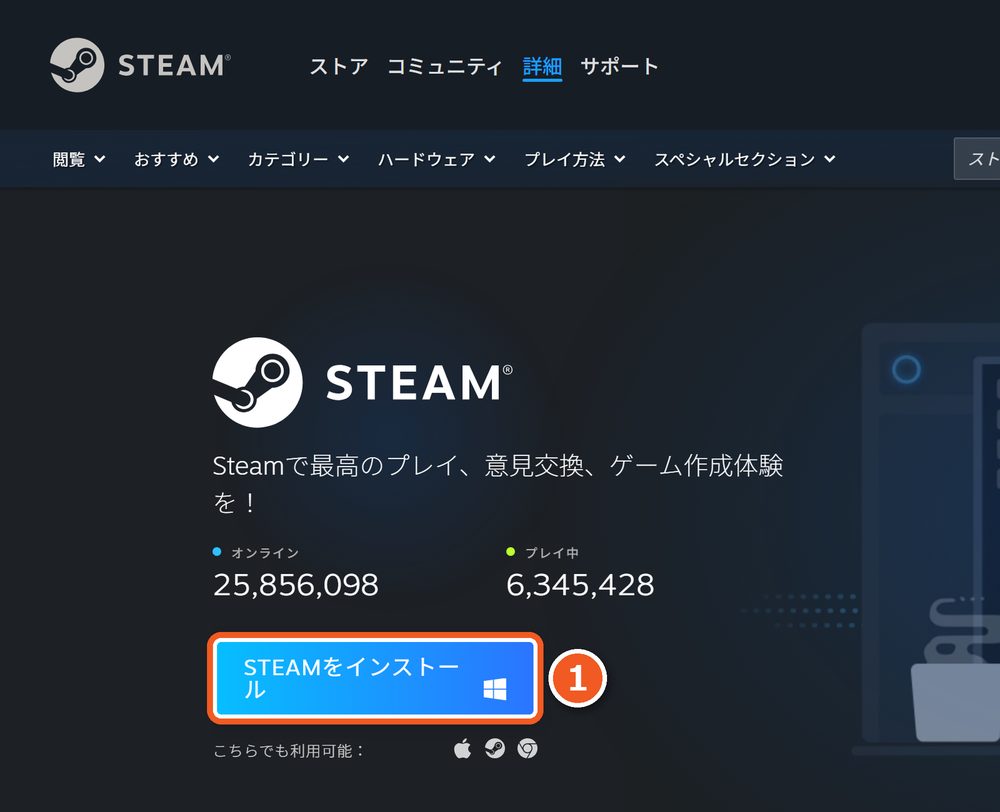
Open the Steam website
Open the Steam website and press “Install Steam”.
-
Install Steam
Open the downloaded file (SteamSetup.exe) and follow the on-screen instructions to install it.
-
Sign in to Steam
Start Steam and sign in with your Steam account. If you don't have one, create it on the Steam sign-up page.
STEP 2Install VRChat and create an account
Install VRChat
-
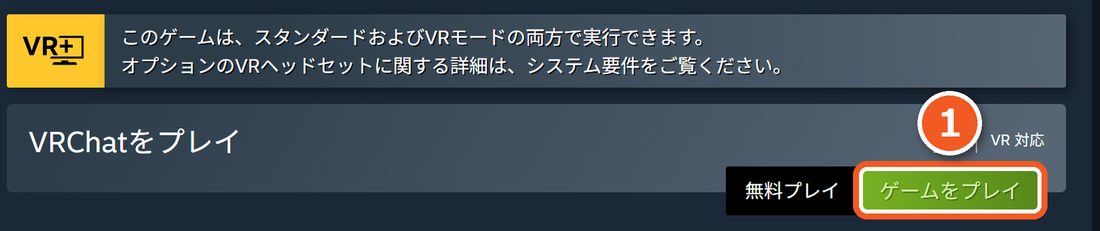
Open the VRChat page
Open VRChat's Steam page and press “Play Game” in the middle of the page.
-
Install it
When the Steam app opens, follow the instructions to install VRChat. The PC requirements are listed on the same page.
Create a VRChat account
-
Open the sign-up page
Open VRChat's sign-up page. The page is in English.
-
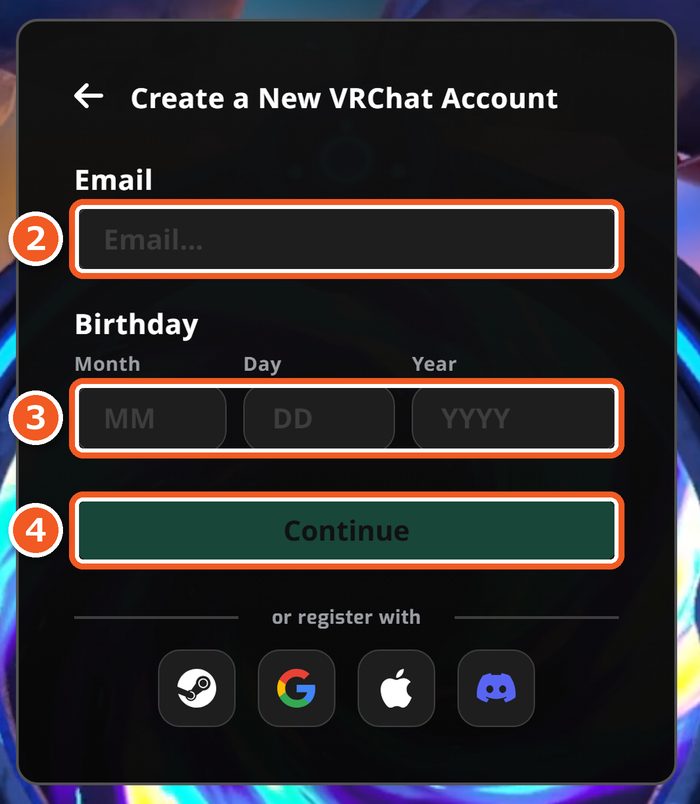
Enter your email address
Enter your email address in “Email”.
-
Enter your date of birth
Enter your date of birth in “Birthday” in the order Month, Day, Year.
-
Continue
Press “Continue” and follow the instructions on the next screens to sign up.
-
Open the confirmation email
Open the link in the email from VRChat to finish signing up.
STEP 3Start VRChat
Start and sign in
-
Start VRChat
In your Steam library, select VRChat and press “Play”.
-
Choose VR or desktop
A screen appears asking whether to start in VR or on the desktop (without VR). If you don't have a VR headset, choose desktop.
To play in VR, connect your VR headset to your PC first. For how to connect it, see your headset's instructions.
-
Sign in
On the sign-in screen, press the button for the method you used to create your account. If you signed up with an email address, press “VRChat” and enter your email address (or username) and password. If you're asked for a verification code, enter the code sent to your email.
You can change the display language with the “Language” arrows at the bottom right of the sign-in screen.
Basic controls
After signing in, you first appear in your own home world. Here you can try walking around and opening menus. The common controls are below. They are the default button settings.
| Action | Desktop (keyboard and mouse) | VR (controllers) |
|---|---|---|
| Walk | [W][A][S][D] | Left stick |
| Turn | Move the mouse | Right stick |
| Jump | [Space] | A button |
| Press buttons | Left-click | Trigger (index finger) |
| Quick Menu | [Esc] | B or Y button |
| Mic on/off | [V] | X button |
The VR buttons are for Meta Quest controllers.
Quick Menu
The Quick Menu is the menu you'll use most in VRChat. On the desktop, press [Esc] to open it and press it again to close it. While the menu is open, you can click its buttons with the mouse.
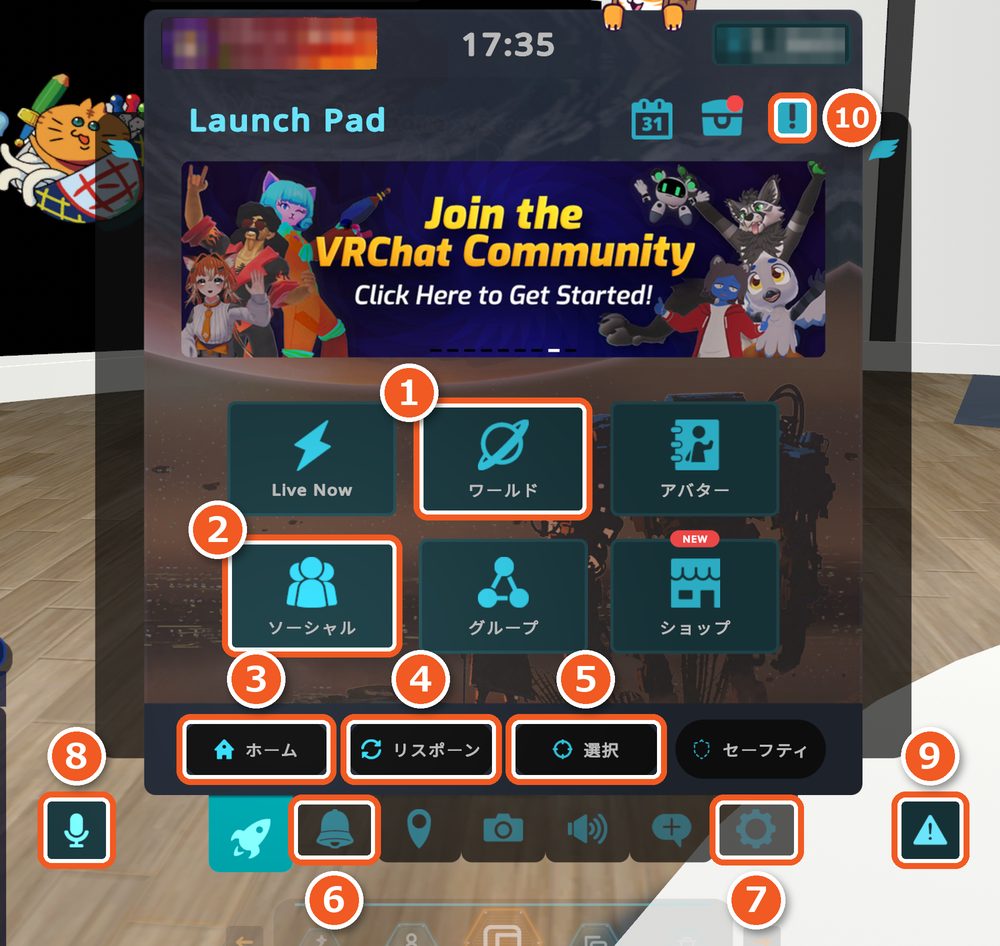
- 1World: Find a world and go there.
- 2Social: Shows your friends list.
- 3Home: Go back to your home world.
- 4Respawn: Go back to the starting point of the current world.
- 5Select: Select another user to open their profile.
- 6Notifications: Invites and friend requests arrive here.
- 7Settings (gear): Double-click to open the settings screen.
- 8Microphone: Turns your mic on and off.
- 9Safe Mode: Hides the avatars of people who aren't your friends and mutes their voices.
- 10Report: Send a report to VRChat.
Change the display language
If you didn't change the language on the sign-in screen, you can still change it after signing in.
-
Open Settings
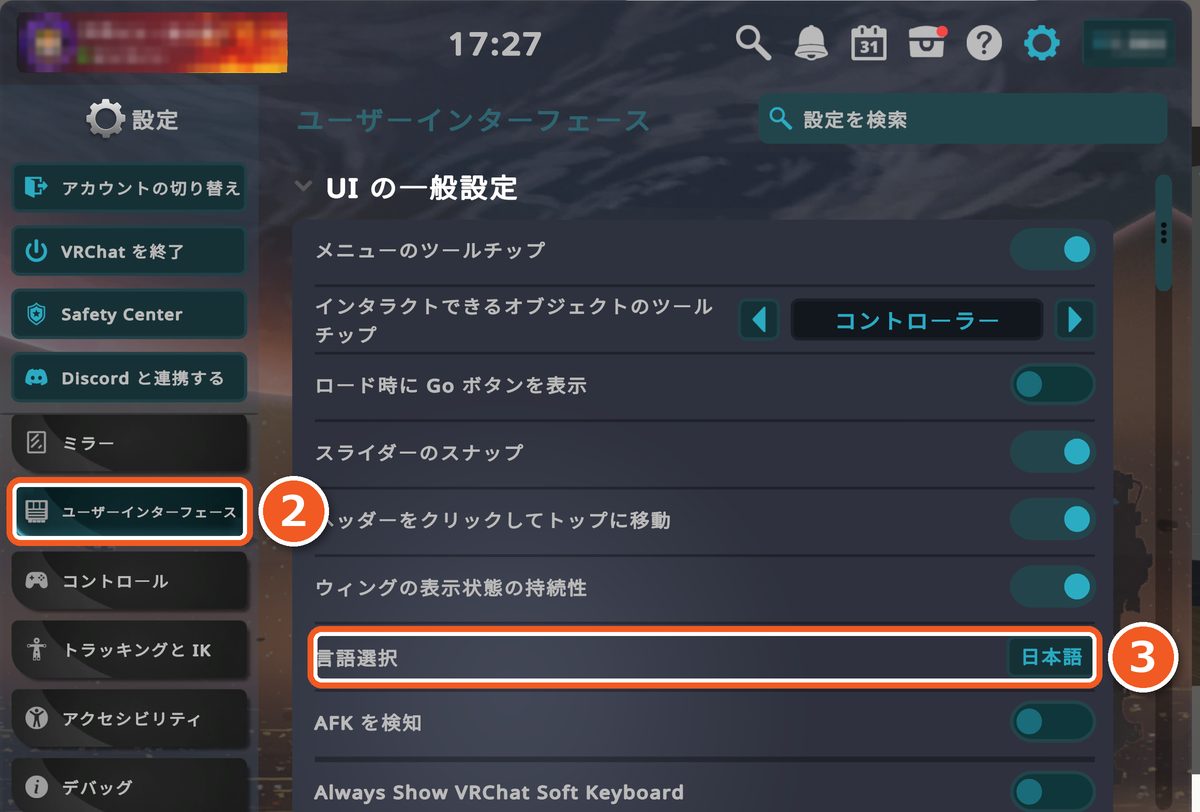
Double-click the gear in the Quick Menu (〈7〉 in the picture above).
-
Choose User Interface
In the list on the left, press “User Interface”. It is between the mirror and gamepad icons.
-
Choose your language
Choose your language in the language setting.
STEP 4Go to the VDP2026 venue
The venue is made up of five worlds in VRChat: the entrance, “VDP2026 Entrance”, and four worlds with booths. The event runs from Saturday, November 7 to Sunday, November 15, 2026.
- VDP2026 Entrance (entrance)
- VDP2026 Hot1 Rave-A-Venue - Hype Drive
- VDP2026 Hot2 Rave-A-Venue - Beat Street
- VDP2026 Chill1 Mellow Echoes - Willow Whispers
- VDP2026 Chill2 Mellow Echoes - Dream Stream
Press a world’s name to open its page on the VRChat website.
There are three ways to get there. Any one of them will take you to the venue.
Way 1: From the VRChat banner and category
During the event, you can go to the venue worlds from the banner at the top of the VRChat Quick Menu and from the VDP2026 row (category) on the Worlds screen.
-
Open the Worlds screen
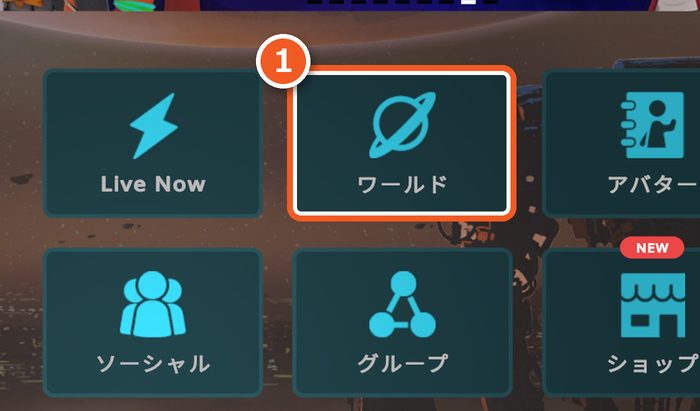
Open the Quick Menu ([Esc] on the desktop) and press “Worlds”.
-
Press “Virtual Dice Party 2026”
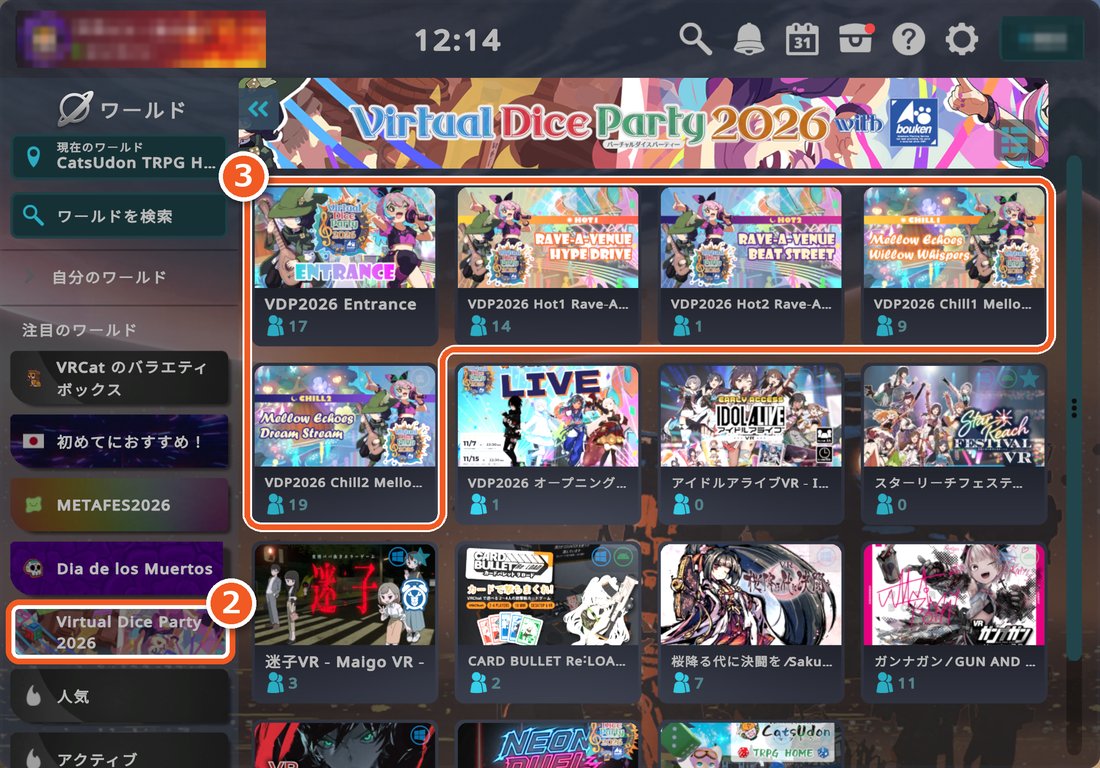
Press “Virtual Dice Party 2026” on the left. The VDP2026 banner appears at the top, and the five venue worlds are listed first.
-
Choose a world and join
Press the world you want to visit. When the world page opens, press “Join”.
Way 2: Search for the world
-
Open the Worlds screen
Open the Quick Menu ([Esc] on the desktop) and press “Worlds”.
-
Search for worlds
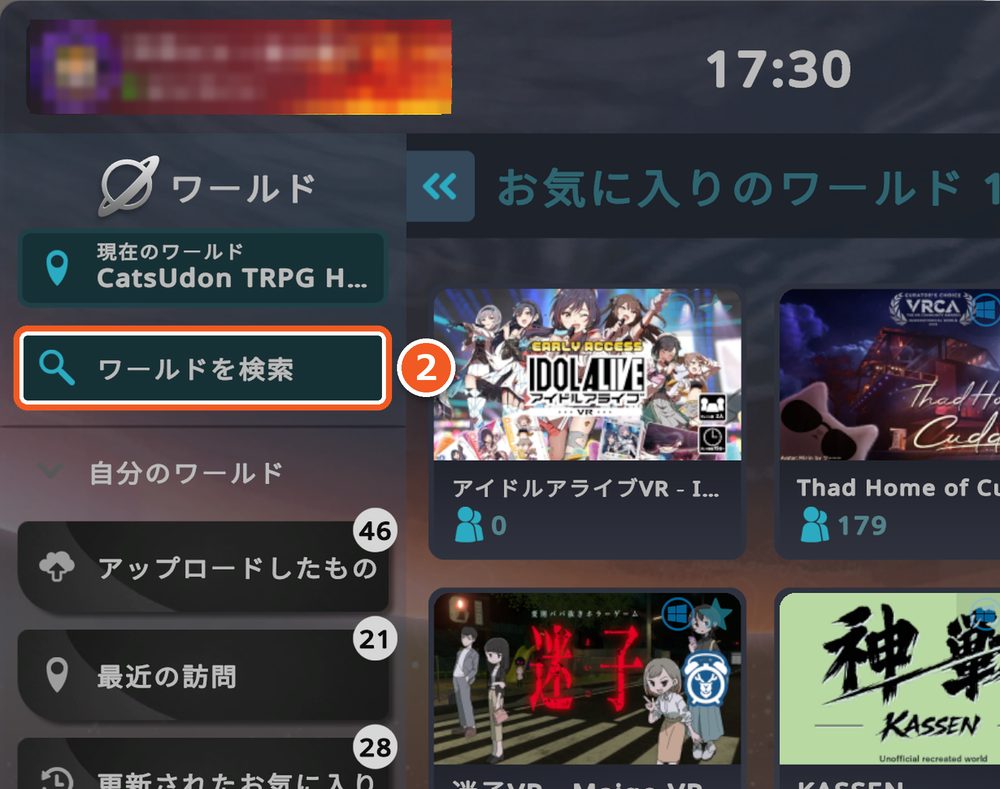
Press the world search button on the left.
-
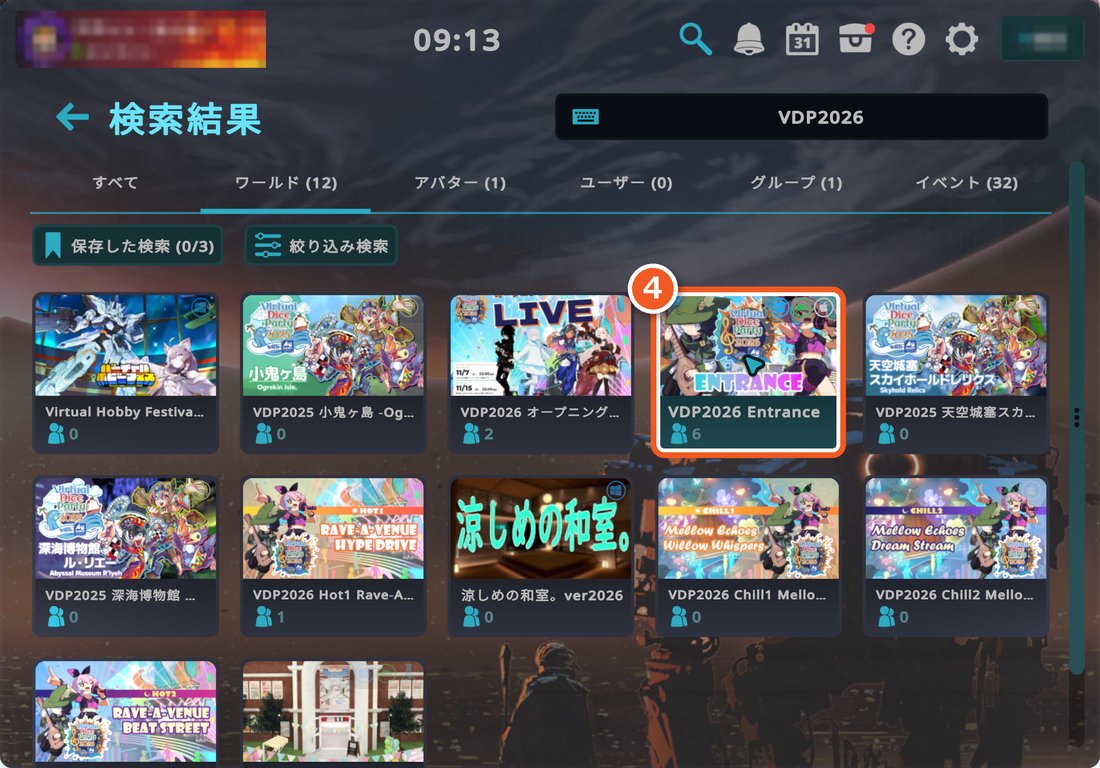
Search for “VDP2026”
When the input screen appears, type “VDP2026” and press the arrow on the right. If typing is difficult, you can copy the text somewhere else and paste it with the paste button at the bottom left.
-
Choose the world
In the search results, press “VDP2026 Entrance”. You can choose the other four worlds the same way.
-
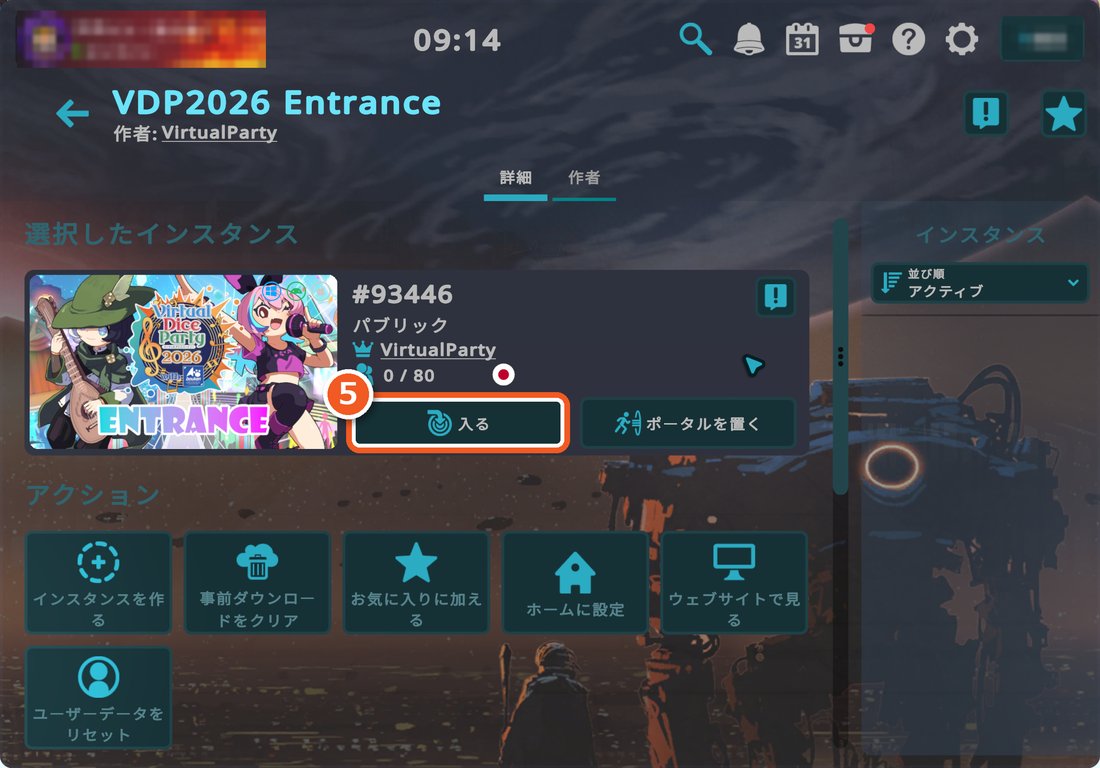
Enter the venue
When the world page opens, press “Join”.
Way 3: From the VDP group
If you join the VDP group “VirtualDiceParty”, you can join instances that are currently open from the Groups screen in VRChat. During Core Time every day from 21:00 to 23:00 (JST), Group Public instances open in every world. Anyone can join a Group Public instance.
-
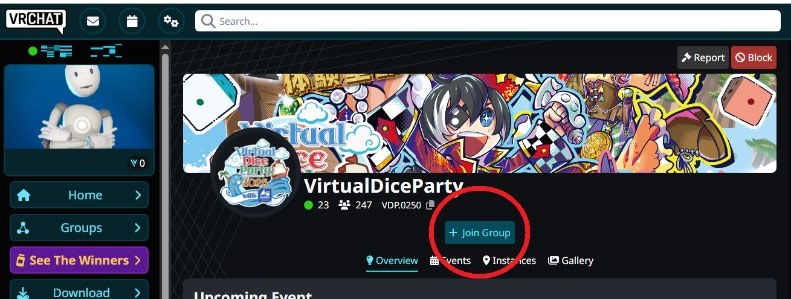
Join the group
On the VRChat website, open the VDP group page and press “Join Group”. If you aren't signed in to the VRChat website, the sign-in screen appears first.
-
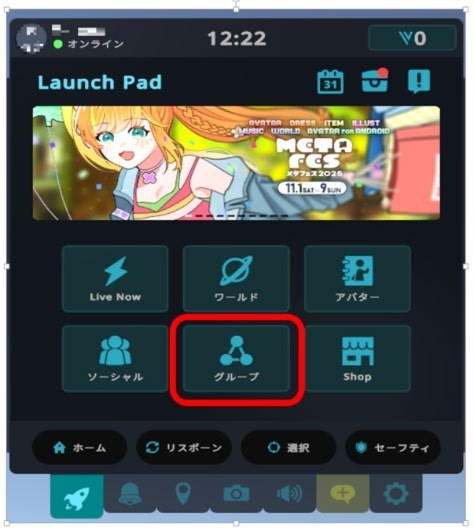
Open the Groups screen
In VRChat, open the Quick Menu and press “Groups”.
-
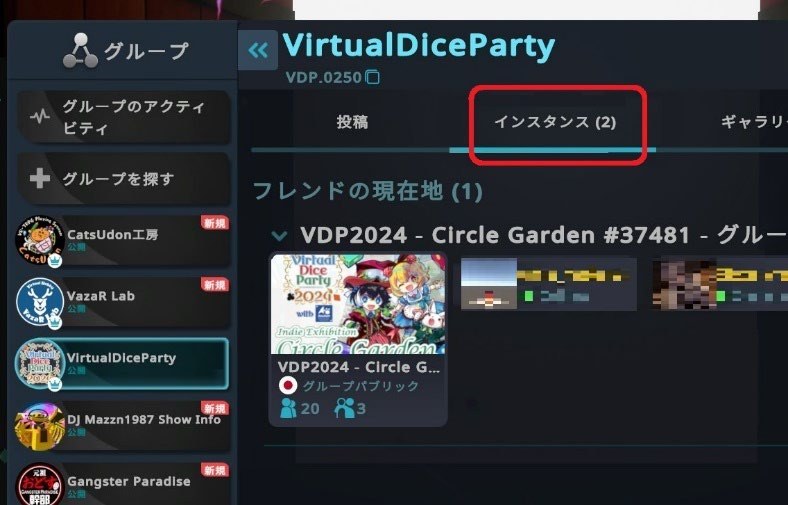
Choose VirtualDiceParty
Choose “VirtualDiceParty” from the list on the left and open the “Instances” tab.
-
Join an instance
Choose the instance you want and press “Join”.
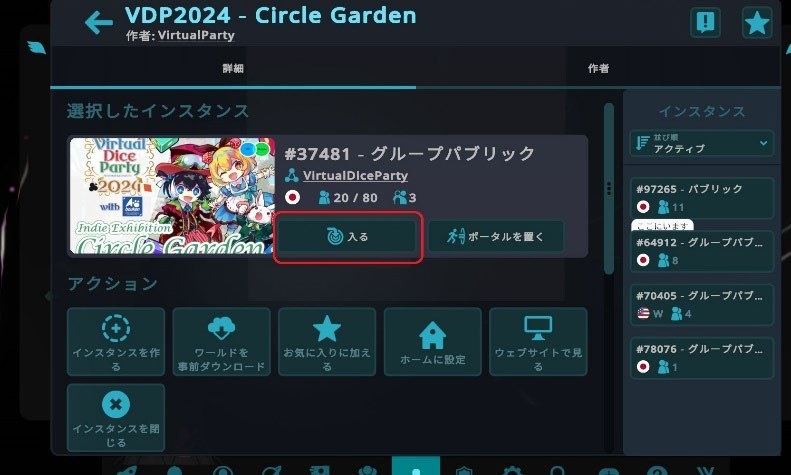
Images for Way 3: by 佐々宮智志 (from last year’s “Guide to Virtual Dice Party 2025”; the screens are from VDP2024)
Other devicesJoining from Quest or a phone
Besides a PC, you can also come to VDP2026 from an Android phone or an iPhone / iPad.
- Android phones
Install VRChat from Google Play. Open VRChat on Google Play - iPhone/iPad
Install VRChat from the App Store. Open VRChat on the App Store
If you connect a Meta Quest to your PC, you can come the same way as on a PC.
After installing VRChat, follow “Create a VRChat account” in STEP 2 and the ways to get to the venue in STEP 4, just as on a PC. The screens look a little different from the PC.
Some programs (such as live shows) are held in worlds you can enter only on a PC. Check each program on the Stage & Collab and Championship pages.
Need help?Troubleshooting
- I can't find or enter the venue
- The event runs from Saturday, November 7 to Sunday, November 15, 2026. For how to get to the venue, see STEP 4 . During Core Time every day from 21:00 to 23:00 (JST), Group Public instances open in every world.
- Other people's voices or avatars bother me
- Press the triangle button at the bottom right of the Quick Menu (〈9〉 in the Quick Menu picture in STEP 3 ) to turn on Safe Mode. The avatars of people who aren't your friends disappear, and you won't hear their voices. To turn it off, press the same button again. On the desktop, press [Shift] and [Esc] together to turn on Safe Mode right away.
- Someone is bothering me
- Select that person and open their profile to mute or block them. Blocking makes you invisible to each other. To report to VRChat, use the “!” button at the top right of the Quick Menu (〈10〉 in the picture).
- I'm lost or stuck
- Press “Respawn” in the Quick Menu (〈4〉 in the picture) to go back to the starting point of the current world. To go back to your home world, press “Home” (〈3〉 in the picture).
- Others can't hear me
- Check that your mic isn't turned off. Press [V] on the desktop or the X button in VR to switch it on and off. You can also use the mic button at the bottom left of the Quick Menu (〈8〉 in the picture).
- I want to learn more about VRChat
- See VRChat's official guides: VRChat Wiki “Getting Started” (English), VRChat Help “Getting Started with VRChat” (English)
- I have questions about VDP2026
- FAQ has answers to common questions. For anything else, use Contact. The latest news is posted on our official X.
This guide was made by Virtual Party Inc. It is not an official VRChat guide. The screenshots were taken in October 2026 and may change with VRChat or Steam updates.